
Prerequisites
Before we dive in, make sure you have the following ready:- A Clouddley account
- A DigitalOcean account
- A GitHub or Bitbucket account
doctl(DigitalOcean CLI) installed and configured- DigitalOcean API token generated
- Python installed locally
- pip installed
- Git installed locally
- Basic familiarity with the Linux command line
Create a Flask Application
Before you deploy your Flask app, it’s a good idea to make sure everything runs smoothly on your local machine. Let’s walk through how to set up and test the simple Flask application step by step.Create project folder
Create and activate Virtual Environment(Optional but recommended)
- For Windows:
- For Linux/MacOS:
Install Flask
Create the Flask App
app.py and add the following code:Open the App in Your Browser
Push Your Flask App to GitHub
Once your Flask app is running locally, the next step is to track it with Git and push it to a remote repository like GitHub or Bitbucket. This helps you manage changes over time and is also key for deploying with Clouddley. In this tutorial, we’ll use GitHub. Let’s walk through the steps:Create a New Repository on GitHub
Initialize Git
Add and Commit Your Code
Create branch and add Remote Repository
Push code
Launch a DigitalOcean Droplet
Next, we’ll spin up a Droplet right from the command line using thedoctl CLI.
Before you begin, ensure you have your DigitalOcean API token ready.
- Authenticate with your DigitalOcean account, run the following command in your terminal:
- Enter your API token when prompted. This will allow doctl to interact with your DigitalOcean account.
-
Before creating your Droplet, make sure you have your
vpc_uuidandSSH keyadded to your DigitalOcean account.
How to find your VPC UUID
How to find your VPC UUID
How to add your SSH Key to DigitalOcean
How to add your SSH Key to DigitalOcean
my-key-name with a name you’ll recognize.- Now, let’s create a Droplet by running the following command in your terminal:
your_vpc_uuid and your_ssh_key_id with your actual values. The SSH key you add here lets Clouddley securely connect to your Droplet during deployments. It uses this key to access the VM, run deployment scripts, and manage your app with no passwords required.
app-droplet using the Ubuntu 24.10 x64 image, located in the nyc1 region.
- To confirm that your Droplet was created successfully, run the command:

Deploy
Your Flask app and DigitalOcean Droplet are ready, now you can deploy your app.- Open your browser and log in to your Clouddley account
- Navigate to Apps and click on Deploy App

Accessing Apps
Step 1: Configure Service
- Choose your Git hosting service; either GitHub or Bitbucket. For this tutorial, we will be using GitHub.
- Click on Continue with GitHub

Choose your Git hosting service
Step 2: Configure Git
- To connect your GitHub user or organization account, click the Select username/organization dropdown and Add GitHub account.
- Once connected, Select your repository and the branch from the dropdown list or quickly search.
- Click on Next

Setup the Flask application repository on Clouddley
Step 3: Configure your Virtual Machine
- From the Choose or add server dropdown, select your VM if it appears in the list. If not, click + Add Virtual Machine.
- To add your VM, enter your droplet’s IP address as VM host, VM user, and the VM port for SSH access.
- Once you’ve entered the details, verify the connection using the Clouddley CLI(recommended) or SSH.
How to Install Clouddley CLI to Verify your DigitalOcean Droplet
How to Install Clouddley CLI to Verify your DigitalOcean Droplet
- Open your local machine’s command line, then connect to the remote VM you want to configure with Clouddley. Use this command to SSH into your DigitalOcean Droplet:
- Install Clouddley CLI by running the command:
- To add the SSH public key, run the command:
- Click Verify to test the connection to your VM.
- Once it’s verified, click on Next.

Configure virtual machine on Clouddley
Step 4: Configure app settings
- Enter the name of your flask application and the port it runs on.
- Click on Next.
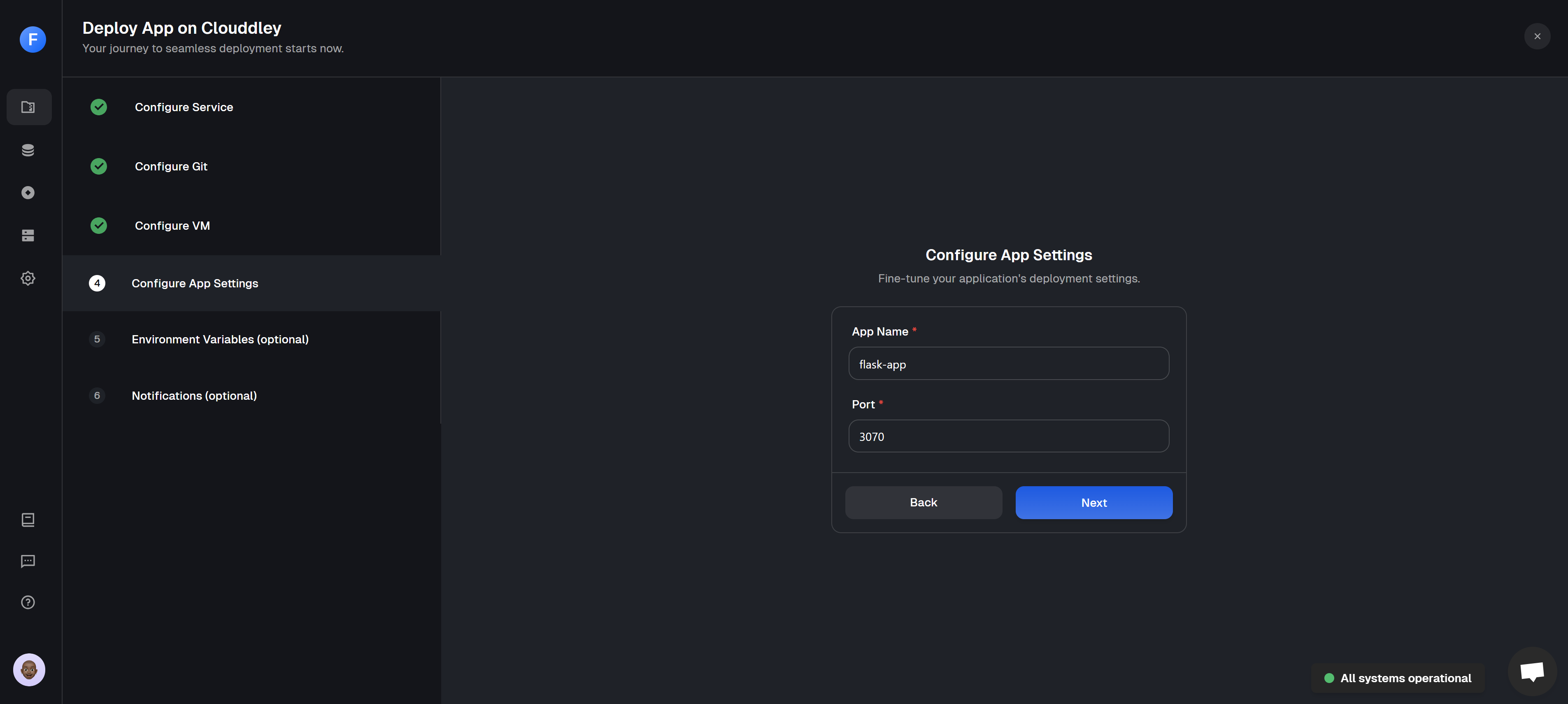
Configure the App name and port
Step 5: Configure Environment Variables
- To add environment variables, click on Add Variable
- Choose an ENV mode: either a single variable or import variables. Learn more here.
- Single Variable
- Import Variables

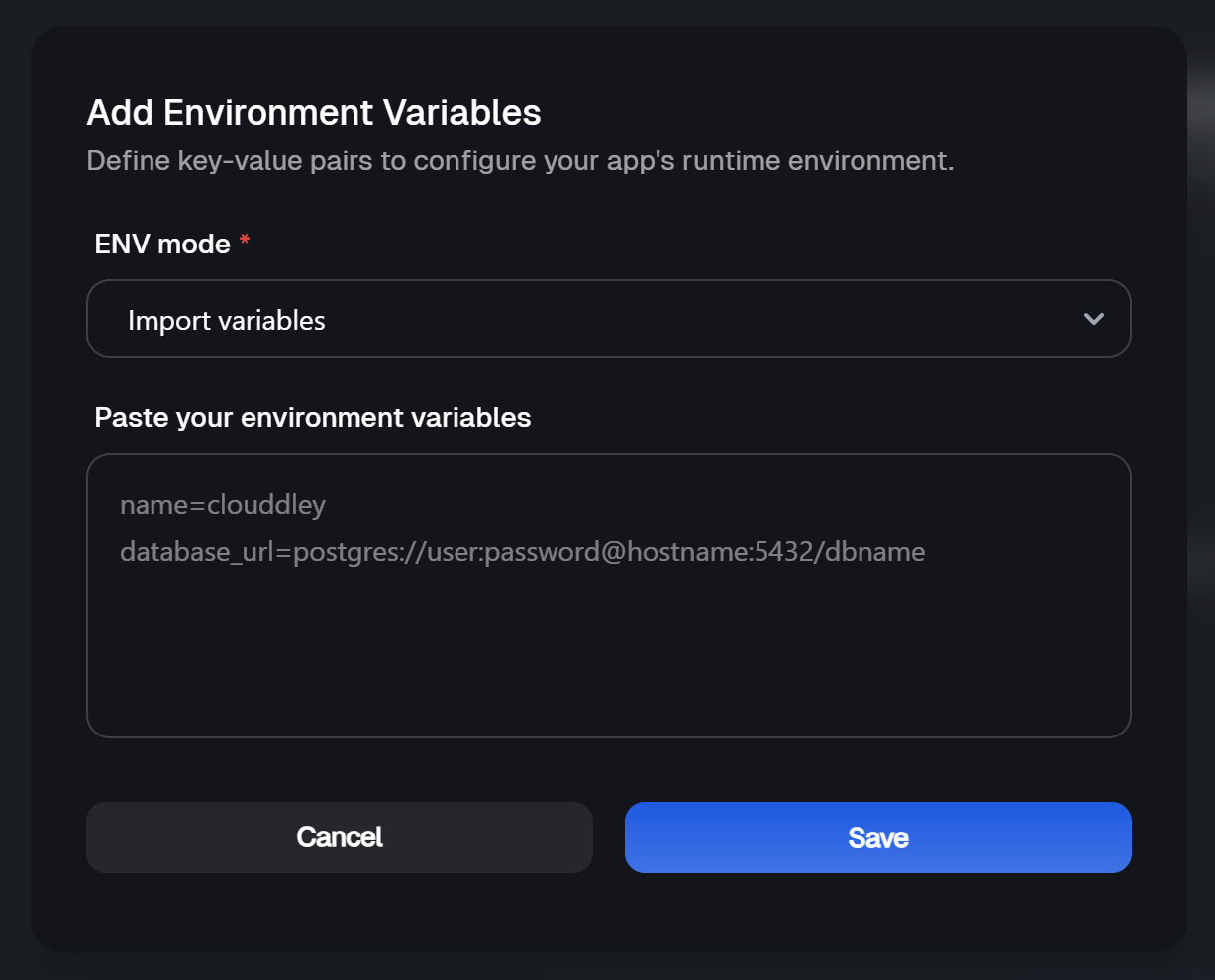
- Add the key-value pairs your app needs and click on Save
- Click on Next
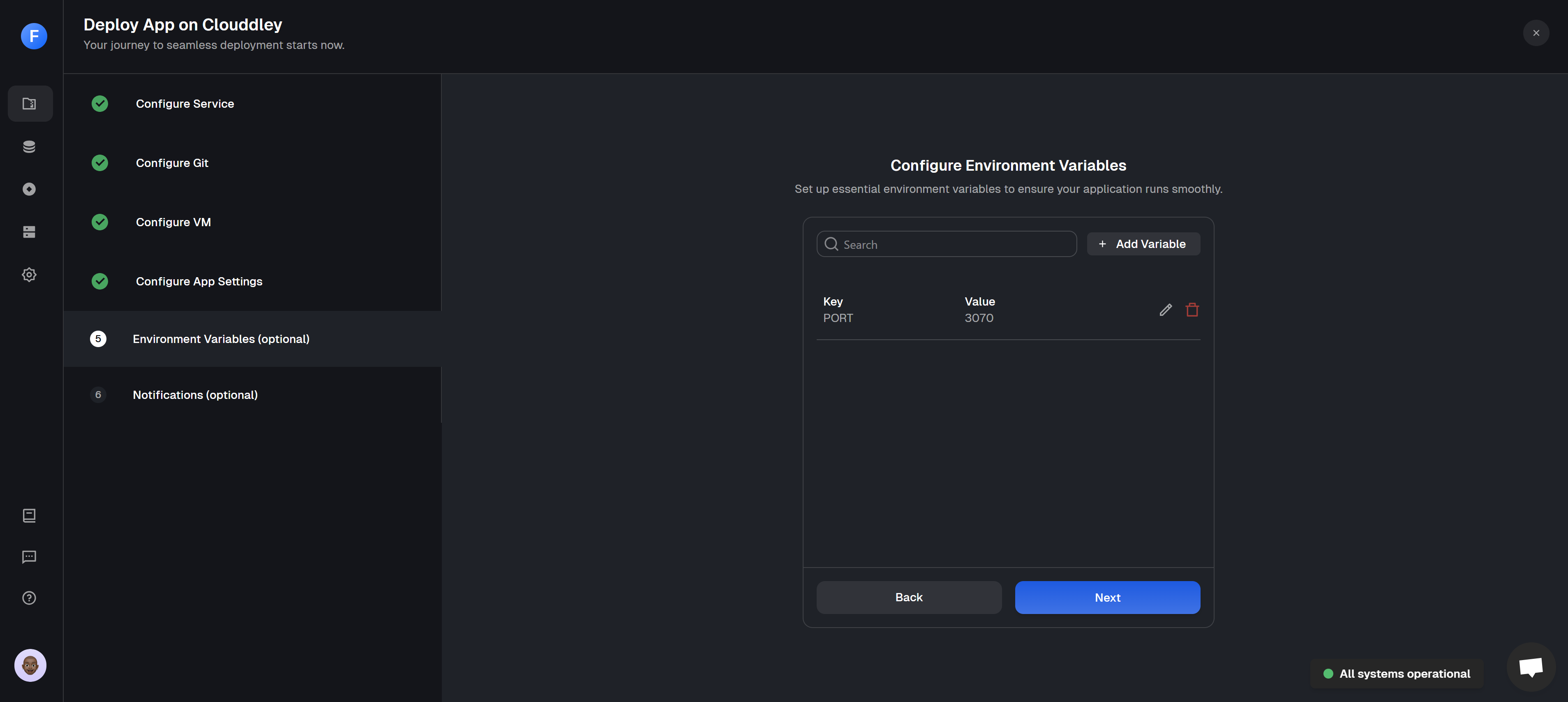
Adding environment variables
Step 6: Setup Notifications (optional)
- To configure the notifications settings of the application, click on Add Alert
- Select the Alert type. For this tutorial, we will set up Email Alerts.
- Toggle the events you want to track; failed, timed out, or successful deployments.
- Enter the Email address where you want to receive alerts. (You can add multiple email addresses)
- Click on Save
- Click on Deploy

Notifications set up and creation of Flask application on Clouddley
Step 7: Test and Verify the app
- Once deployed, click on Go to Dashboard. Your app will be visible on the apps dashboard.
- When the status changes from
DeployingtoOnline, your Flask app is live!
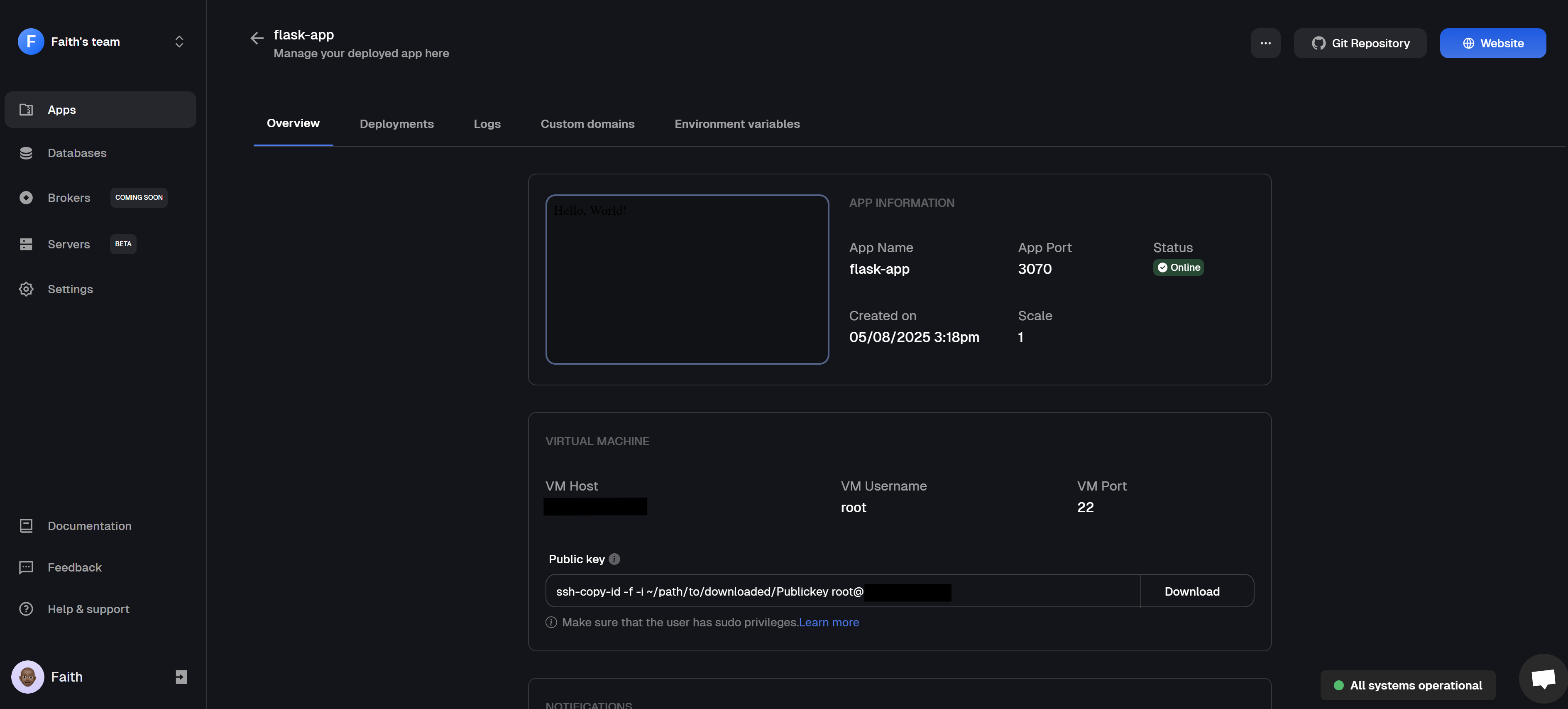
Flask application dashboard overview
- To check it out, click the 🌐 Website button at the top right and this will open your deployed app in a new browser tab
- Now, go ahead and test its functionality to make sure everything’s working just right.

Flask application running from Clouddley on a DigitalOcean Droplet
Post-Deployment: Managing Your Flask App
After deploying your Flask app to a DigitalOcean Droplet using Clouddley, you can manage everything from the apps dashboard, there is no need to log into the server.You can modify deployment settings, scale your app, roll back to a previous version, pause or resume the app, or delete it when needed. The dashboard also includes helpful features like deployment history, live logs, environment variables management, and custom domain setup, making it easy to stay on top of your app after deployment.
Flask App Best Practices
Flask App Best Practices
Organize your code into modules and folders to keep things tidy and scalable. Use virtual environments
Isolate your dependencies so your project doesn’t clash with others on your system. Keep secrets out of your code
Store API keys and config values in environment variables and not directly in your files. Break your app into Blueprints
Blueprints help separate concerns and make large apps easier to manage. Handle errors gracefully
Set up custom error pages and log issues for smoother debugging and better UX. Don’t use the dev server in production
Always run Flask with a WSGI server like Gunicorn when deploying live. Add basic logging
Logging helps you spot issues early and track what’s happening in your app. Test your app
Even a few simple tests can save you from big surprises later. Secure your app
Watch out for CSRF, input validation, and other common web vulnerabilities. Keep your packages updated
Regularly update your dependencies to patch bugs and stay secure.