
Prerequisites
- A Clouddley account
- An AWS account
- AWS CLI installed and configured on your local machine
- AWS Access Keys with permissions to create and manage EC2 instances
- FastAPI installed on your local machine
- Git installed locally
- Basic familiarity with the Linux command line
Create a FastAPI Application
If you don’t have a FastAPI app yet, you can create a simple one by following these steps:Set Up a Virtual Environment
Install FastAPI and Uvicorn
Create the Application File
main.py and add the following code:Run the Application Locally
http://localhost:3033 to see {"Hello": "World"}.Create a Procfile
Procfile in the root of your project directory and add the following line:Push Your Code to GitHub
You need to push your FastAPI app code to a Git repository.Create a New Repository on GitHub
Initialize Git
Add and Commit Your Code
Create branch and add Remote Repository
Push code
Create an AWS EC2 Instance
Now, let’s create an EC2 instance on AWS using AWS CLI. Make sure you have AWS CLI configured with your credentials. First, create a VPC and security group if you don’t have one already.- Create a VPC by running the command:
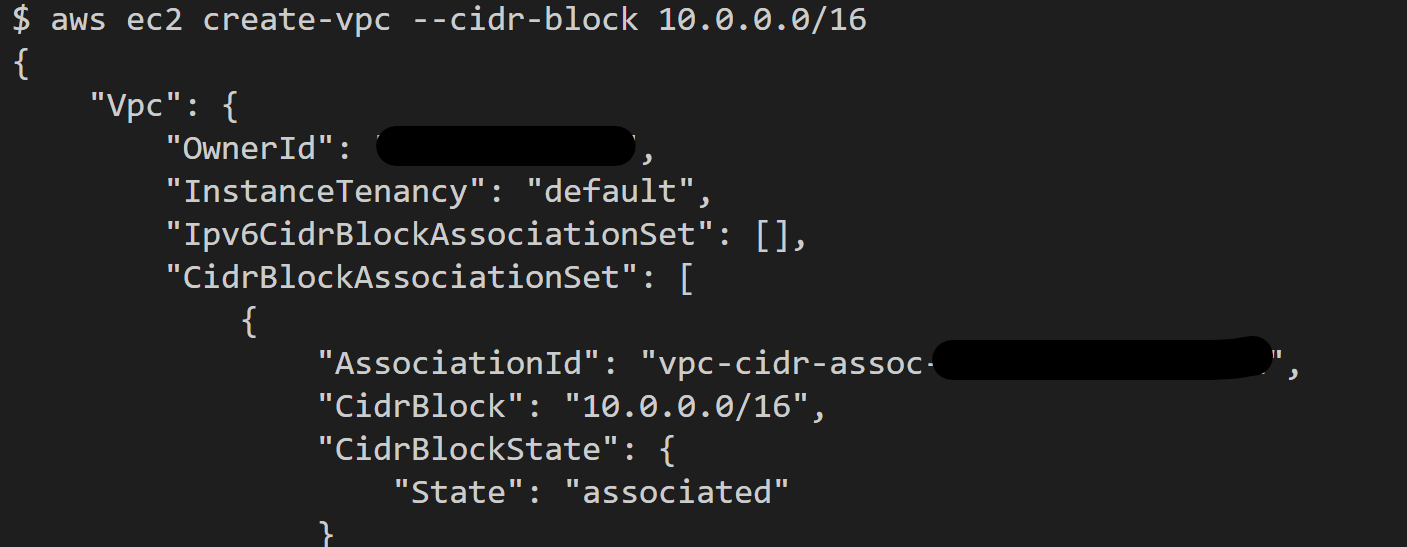
Create a VPC on AWS
- Create a security group by running the command:
vpc_id with the one created in the previous step. 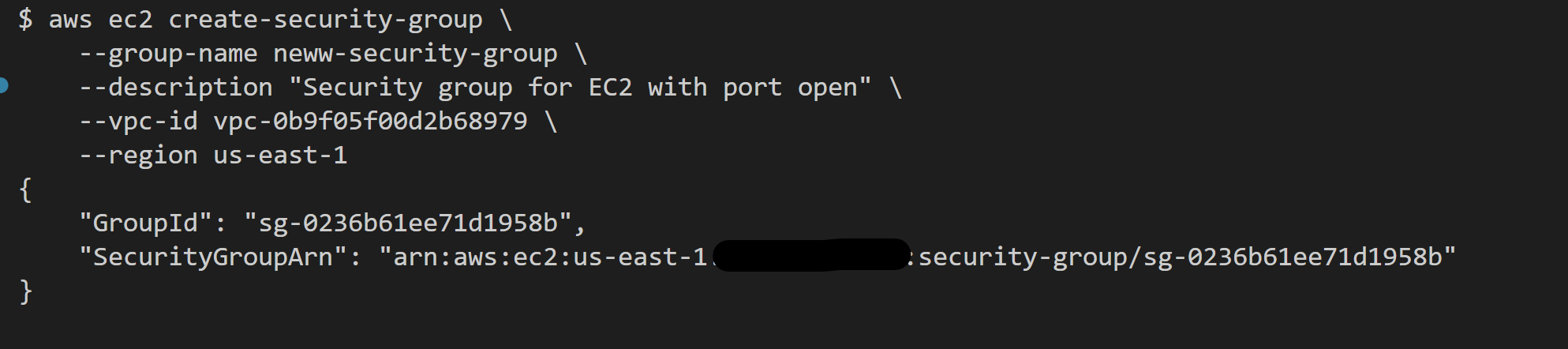
Create a Security group on AWS
- Allow inbound traffic on port 22 (SSH) and port 3033 (your application port):
sg_id with the one created in the previous step. - To create an EC2 instance, you need to have an SSH key pair. If you don’t have one, you can generate and import one below.
How to Generate and Import SSH Keys to AWS
How to Generate and Import SSH Keys to AWS
- Step 1: To generate an SSH key, run the command:
- Step 2: To add your SSH key to AWS, run:
- Finally, create the EC2 instance:
- Replace ami-xxxxxxxx with regions’s compatible AMI
- Replace my-key with your key pair name
- Replace sg_id with your security group id
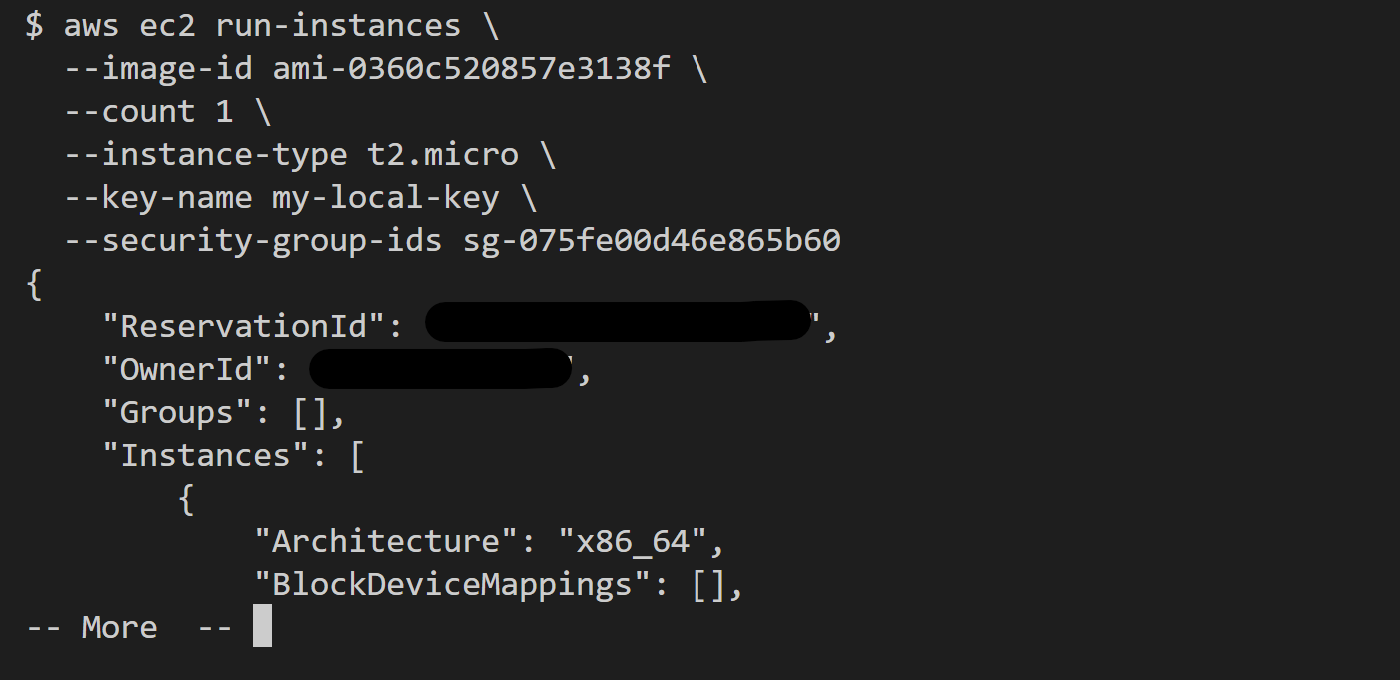
Create a EC2 instance on AWS
Once the instance is running, note the Public IP address of the instance. You’ll need it later.
Deploy
Now you have your FastAPI app on GitHub and an EC2 instance running on AWS. The next step is to deploy it.- Log in to your Clouddley account
- Click on Apps at the left sidebar
- Click on Deploy App

Accessing Apps
Step 1: Configure Service
- Choose your Git hosting service which can be Github or Bitbucket. We will use Github in this tutorial.
- Click on Continue with Github and authorize Clouddley to access your Github account.

Choose your Git hosting service
Step 2: Configure Git
- To connect your Github user or organization account, click on the Select username/organization dropdown and Add Github account.
- Select your repository and the branch from the dropdown list or quickly search.
- Click on Next.

Setup the FastAPI application repository on Clouddley
Step 3: Configure your Virtual Machine
- From the Choose or add server dropdown, select your VM if it appears in the list. If not, click + Add Virtual Machine.
- To add your VM, enter your instance’s IP address as VM host, VM user, and the VM port for SSH access.
- Once you’ve entered the details, verify the connection using the Clouddley CLI(recommended) or SSH.
How to Install Clouddley CLI to Verify your AWS EC2 Instance
How to Install Clouddley CLI to Verify your AWS EC2 Instance
- Open your local machine’s command line, then connect to the remote VM you want to configure with Clouddley. Use this command to SSH into your EC2 instance:
- Install Clouddley CLI by running the command:
- To add the SSH public key, run the command:
- Click on Verify. This verifies the connection to your VM.
- Once verified, click on Next to proceed.

Configure virtual machine on Clouddley
Step 4: Configure app settings
- Enter the name of your application and its port number.
- Click on Next to continue.
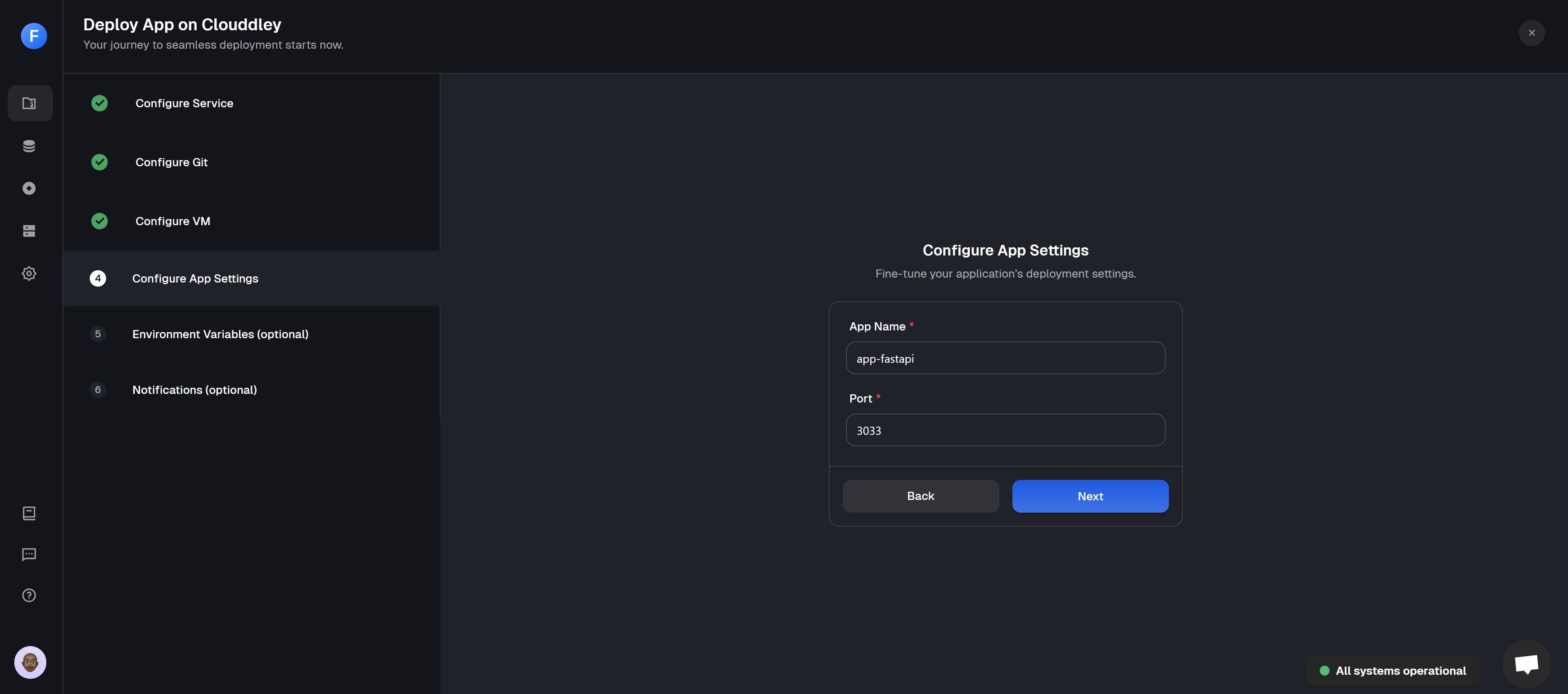
Configure the App name and port
Step 5: Configure Environment Variables
- Click on Add Variable
- Choose an ENV mode: either a single variable or import variables mode. Learn more here.
- Single Variable
- Import Variables

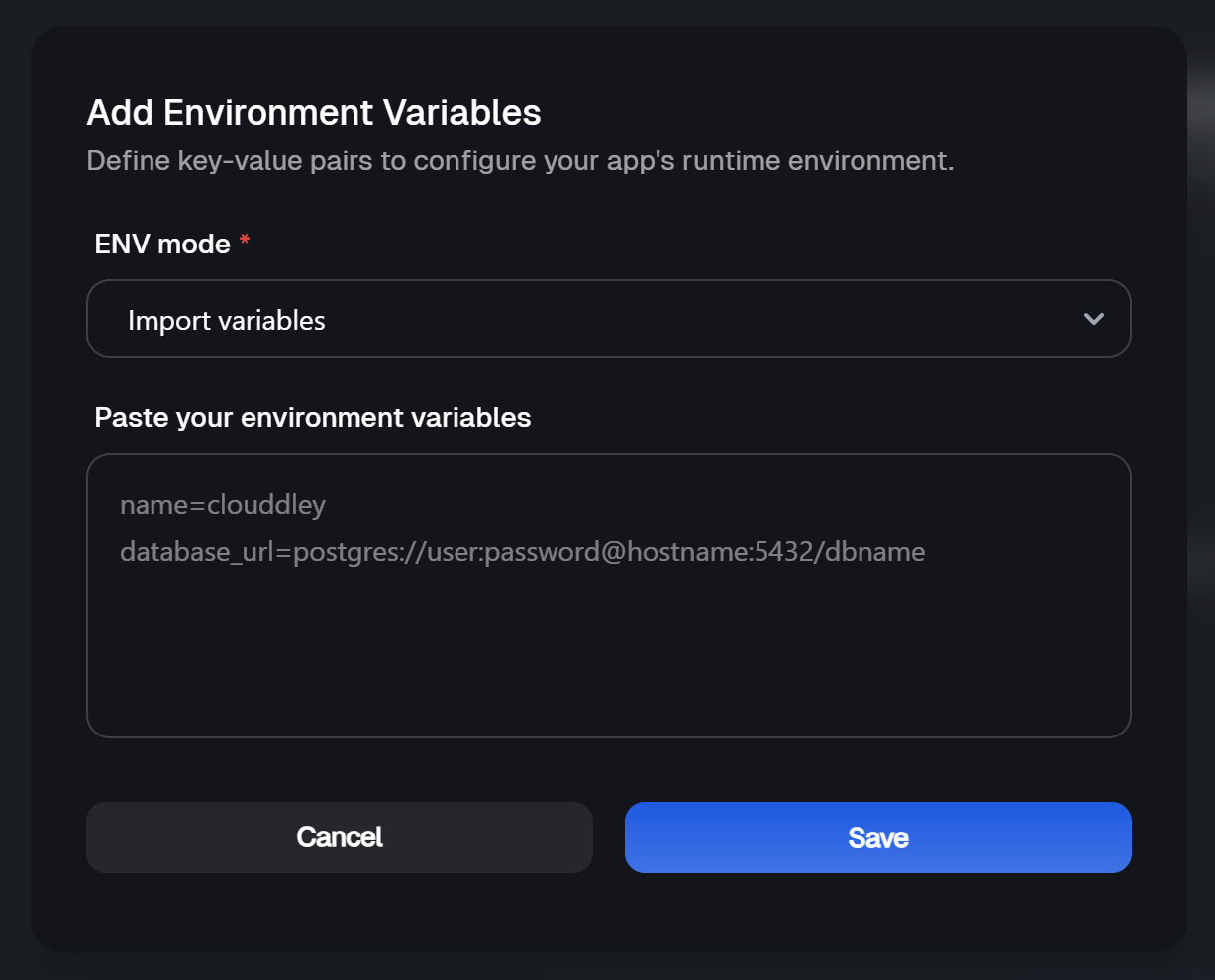
- Add the key-value pairs and click on Save.
- Click on Next to continue.
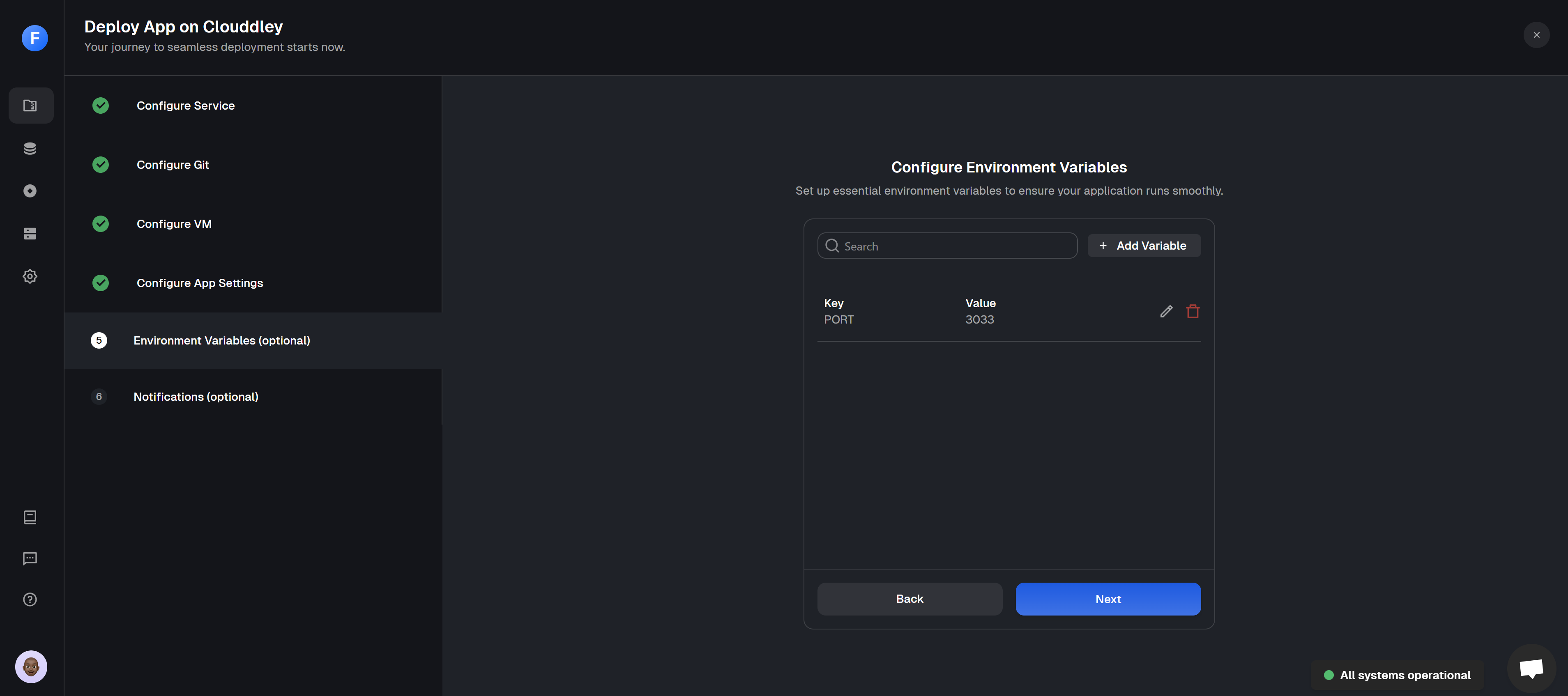
Adding environment variables
Step 6: Setup Notifications (optional)
- To configure the notifications settings of the application, click on Add Alert
- Select the Alert type. For this tutorial, we will set up Email Alerts.
- Toggle on the buttons of the deployment event (failed, timed out, or success) you want to be notified of.
- Enter the Email address where you want to receive alerts. (You can add multiple email addresses)
- Click on Save
- Click on Deploy

Notifications set up and creation of FastAPI application on Clouddley
Step 7: Test and Verify the app
- Click on Go to Dashboard to see your application on the apps dashbaord.
- Once the deployment is complete, the app status changes from
DeployingtoOnline.
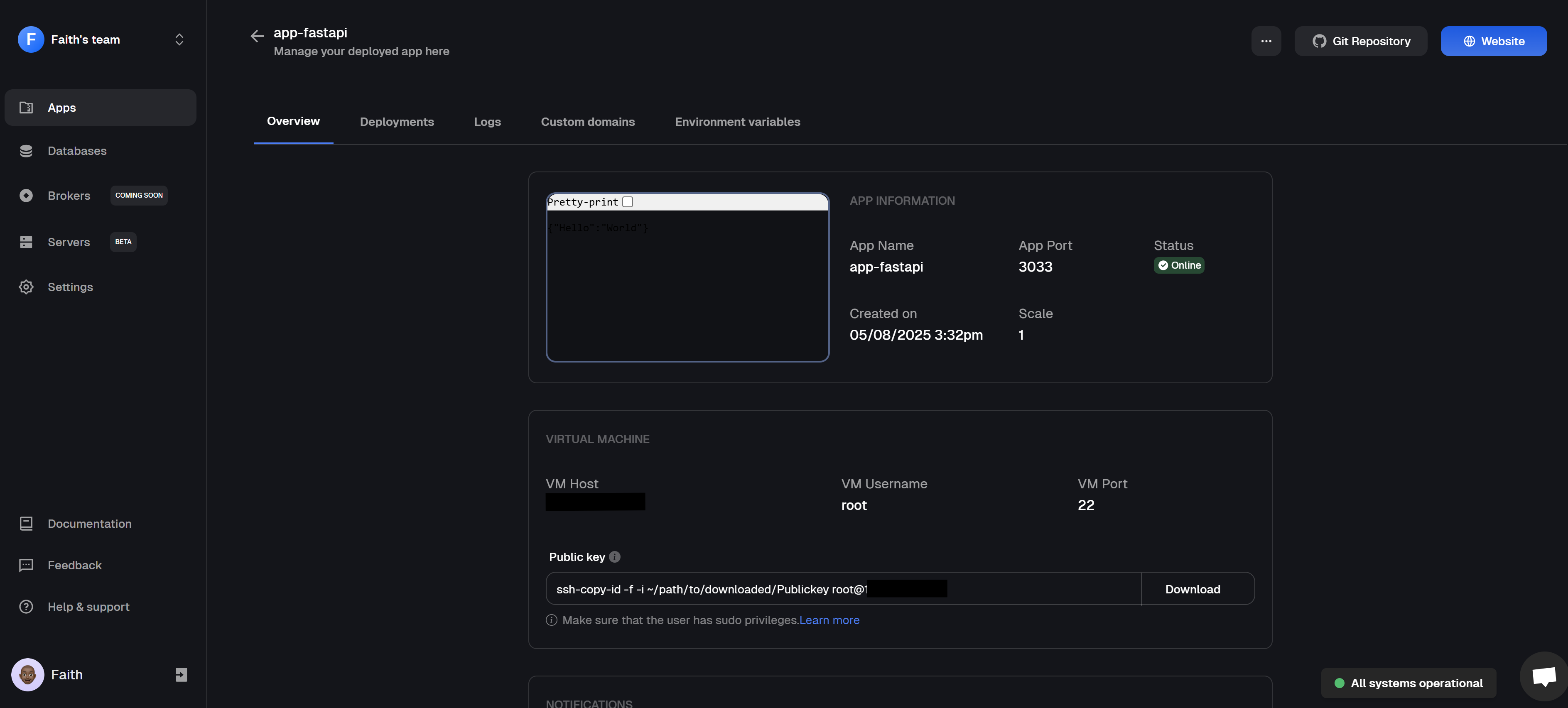
FastAPI application dashboard overview
- Click on 🌐 Website at the top right corner of the webpage, this opens the URL of your application in your browser.
- You should see your Golang application running successfully.

FastAPI application running from Clouddley on an AWS EC2 instance
Post Deployment: Managing Your Application
After your FastAPI app is live on an AWS EC2 instance using Clouddley, managing it becomes straightforward. From the apps dashboard, you can take care of everything without logging into the server. You can update settings, scale, roll back to previous versions, pause or resume the app, or even delete it. The dashboard also gives you tools to view deployment history, check logs, manage environment variables, and connect a custom domain all in one place.FastAPI Application Best Practices
FastAPI Application Best Practices
Instead of cramming everything into one
main.py, split things out. Have separate files or folders for routes, models, services, and utilities. It makes your code easier to read and scale. Hide your secretsAPI keys, database passwords, or tokens don’t belong in your code. Use environment variables or a config manager so you can swap them out without touching your codebase. Use Pydantic to your advantage
One of FastAPI’s biggest strengths is data validation. Define request and response models with Pydantic, and let it catch bad inputs before they cause trouble. Make errors human-friendly
Nobody likes a messy traceback. Add custom exception handlers so your API responds with clear, helpful messages when something goes wrong. Go async when it matters
FastAPI is built for async, but it only helps if you use it. Choose async-ready libraries for database calls, HTTP requests, or anything that waits on I/O. Otherwise, you’re just slowing yourself down. Lock down your endpoints
Even small projects deserve security. Use authentication (JWT, OAuth2, or at least API tokens) and authorization checks so only the right people can access sensitive routes. Write tests
Start small with endpoint tests and expand from there. Tools like Pytest work beautifully with FastAPI, and having tests in place keeps you from shipping bugs. Document as you go
FastAPI generates docs for you, but don’t stop there. Add descriptions, examples, and notes in your route definitions so your API feels polished and easy to use.